Translate Figma content in translate5 – with the design in view
Export the text from a Figma design, translate and revise it in translate5 with the design as visual context, and then import the finished translation back into Figma. This avoids manually copying and pasting text between the design tool and the translation environment and keeps the whole process connected.
From Figma to translate5 and back
A free community plug-in for Figma developed by Ian Barrow (Conversis) connects the Figma design with the translation workflow in translate5. In the file-based workflow, the process consists of four steps, without manually copying text between the two systems:
Exporting all text from the design to an XML file, straight out of Figma
Importing the XML file into translate5, together with image exports of the design as Visual files
Translating and reviewing the text in translate5, with the design available as visual context above the segments
Reimporting the translated file back into Figma as language-specific duplicate of the original Figma design
You work with a duplicate of the design for each target language, so the original remains untouched.
Translating with the design directly in view
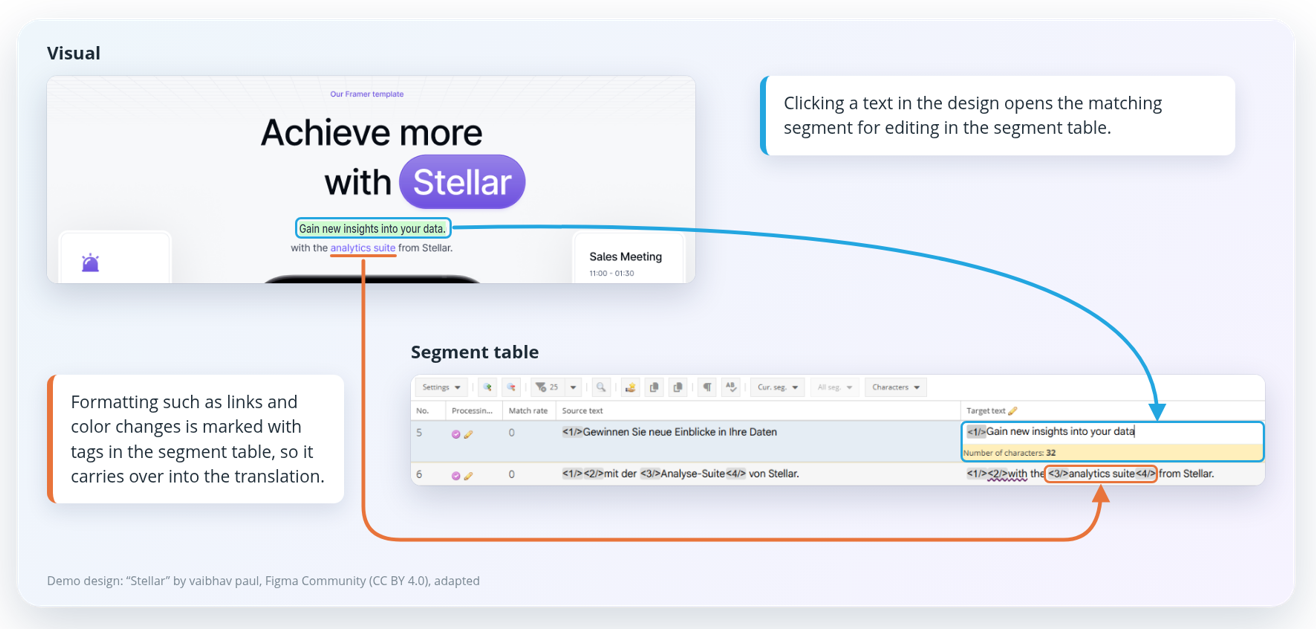
In the translate5 editor, translate5 Visual shows the design above the segment table: Click a text in the design to open the corresponding segment in the editor for translation. For this linkage, translate5 matches the text appearing in the exported images with the corresponding text in the imported work file. This connects the visual representation of the Figma design with the content being translated in translate5.
This is particularly useful where space is limited. Translators or reviewers can see the design update in real time while translating or reviewing and identifying potential length or layout issues before the translated content is returned to Figma.
Preserving the formatting when translations return to Figma
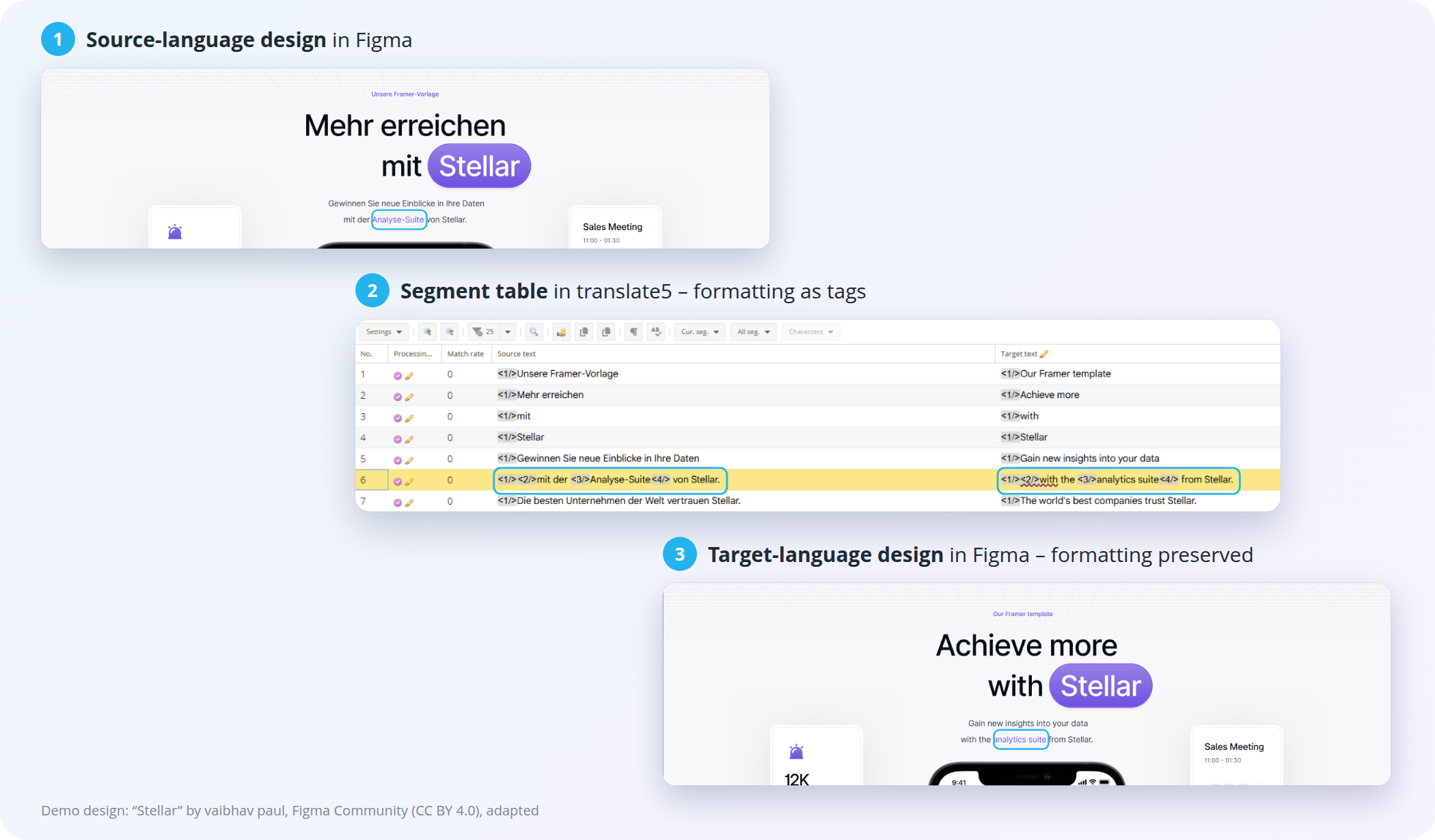
Formatting changes, colours and fonts within a text are exported as inline elements and protected as internal tags in translate5. Translators work on the text in translate5 without having to edit its markup. When the translated file is imported back into Figma, the formatting is retained.
Avoiding manual text transfer between Figma and translation environment
Without this connection, design text has to be copied out of Figma by hand, translated separately and then typed or pasted back into the design one element at a time. The plug-in for Figma and the translate5 workflow remove these manual transfer steps and help avoid the problems associated with them:
No manual text transfer: Text is exported from Figma, translated in translate5 and imported back into the design instead of being retyped or pasted element by element.
Fewer correction loops: Translators work with the design as visual context, so potential length and layout problems become apparent during translation or review rather than only after the translations have been returned to the design.
Reusable translations: The translated content can be stored in a translation memory in translate5 and reused for later versions of the design.
Terminology and quality checks included: Figma content is translated within the same translate5 project environment as your other translation content, giving translators access to the terminology and quality processes configured there.
Automate the transfer between Figma and translate5 via API
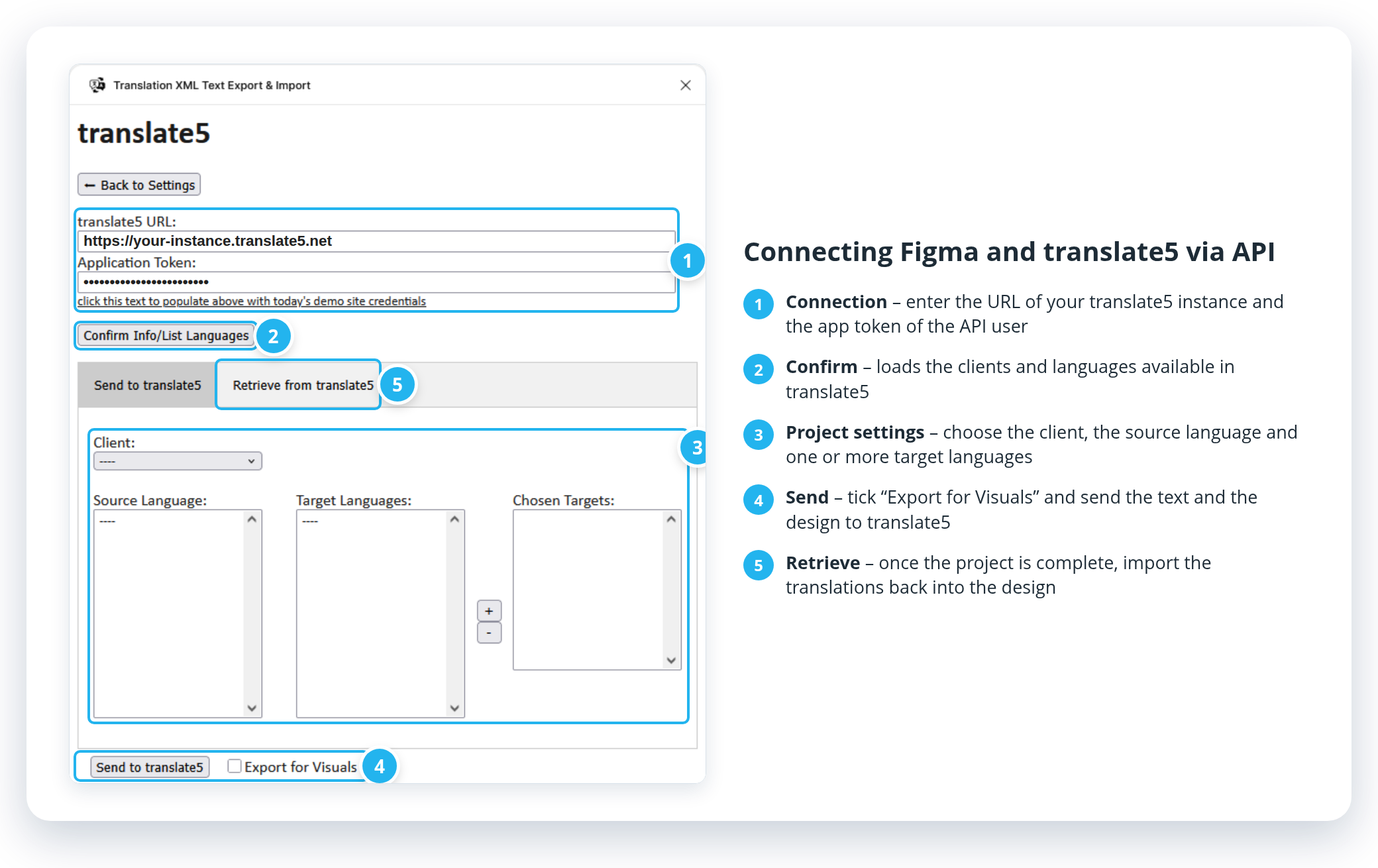
The plug-in transfers the content in both directions, so you do not need to export, upload or download any files:
Send content to translate5: The plug-in sends the text and the image exports of the design from Figma to your translate5 instance.
Create the project automatically: translate5 creates the translation project for the selected client and languages straight away.
Translate as usual: Translators and reviewers work in the translate5 Editor with the Visual plug-in and see the design update in real time.
Retrieve the translation: Once the project is complete, you can retrieve the translated content in the plug-in and import it into the design.
To set up the connection, you need a technical user with API rights and an app token in translate5.